That moment when you’re chilling at the coffee shop and your phone’s whining about data limits, then the words Free WiFi light up your screen feel like a small miracle in a mug. So of course, you tap “Connect.” It’s harmless, right? Just a quick scroll, maybe a job search, maybe a video of a corgi on a skateboard. But here’s something that you may not know: that friendly, invisible signal drifting through your favorite coffee shop can be a bit of a trickster. Hidden behind it are quiet watchers, fake networks, and people who treat your personal data like a free sample. This piece isn't meant to put the fear of God and free Wi-Fi in you; rather, think of it more as a survival guide to protecting your data when you’re on public WiFi.
When “Free” Comes With Fine Print


Few words charm humans faster than free. Free samples, free trials, free shipping, we’re all wired to love it. But with public WiFi, “free” can quietly translate to “shared.” Open networks are like big public picnic tables. Everyone’s sitting there together, swapping bits of digital food. Your emails, logins, and credit card details all float through the same space, and a hacker doesn’t need a trench coat or Hollywood flair, just a laptop and the right app. It’s not about being scared; it’s about being sensible. You wouldn’t drop your wallet on a counter and walk away, so don’t do it with your data. Public WiFi’s perfect for scrolling memes or checking maps, just skip the online banking until you’re back home.
The Copycat Café Network Trick


Ever open your WiFi list in a crowded spot? It’s a carnival of names: CoffeeLoversFree, CoffeeLovers_Guest, CoffeeL0vers_Free2. Somewhere in there, one’s legit. The others might not be. Hackers love creating fake hotspots that look identical to real ones. It’s called a “man-in-the-middle” scam, which sounds like a mystery novel but is basically digital pickpocketing. You think you’re logging into the café’s network, but really, you’re connecting to someone’s laptop pretending to be that network. Easy fix: just ask. The barista always knows which WiFi is real. If the real one has a password, even better. Real businesses use them even if it’s something like coffee123. And those pop-up login pages you sometimes have to click through, they’re a good sign. It means the network’s being managed by someone who’s at least trying.
HTTPS: Your Tiny Digital Shield


Look up at your browser bar for a second. See that little padlock next to a website’s name? That’s HTTPS, the part that keeps your info from being passed around like gossip. It stands for “secure,” and it means your data is encrypted as it travels. Without that “s,” your online activity might as well be written on a napkin in marker. Before you log in anywhere, check for that padlock. If it’s missing, don’t risk it. These days, most sites are protected, but the ones that aren’t? It's best if you leave them alone.
VPNs: The Internet’s Invisibility Cloak
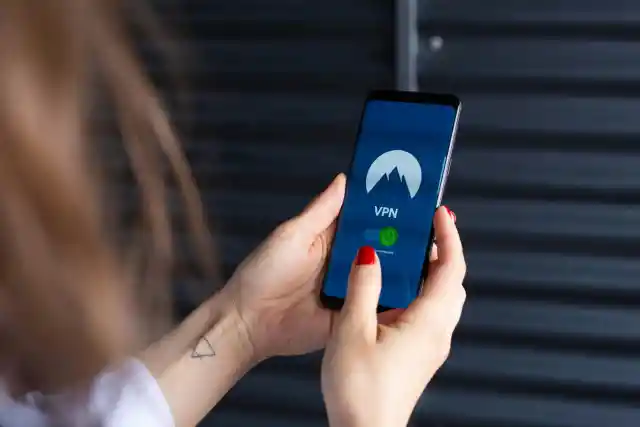
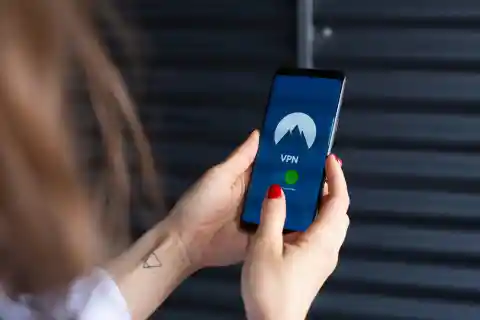
VPNs sound like tech-speak, but they’re really just bodyguards for your WiFi life. A Virtual Private Network wraps everything you do online in a layer of coded protection. With this, anyone snooping on your traffic just sees scrambled nonsense. Getting one is easy. You download an app, tap connect, and you’re shielded. Some cost a few dollars a month; others are free but a bit slower. Still, they’re worth it, especially if you ever log in to work accounts or handle personal details while traveling.
Keep Your Devices Quiet


Here’s something most people don’t realize: connecting to public WiFi also connects you, indirectly, to everyone else on it. Your phone and laptop are friendly little chatterboxes. They like to announce themselves through Bluetooth, AirDrop, or file sharing. This is not ideal in a place full of strangers. Before you join an open network, take a few seconds to silence those features. Turn off sharing, make Bluetooth invisible, and when your device asks if it’s a public or private network, always pick public. That setting keeps your stuff locked down. And please disable “auto-connect.” It’s convenient, sure, but it can also hook your device onto the wrong network later.
Apps Can Be the Weak Link
Web browsers have come a long way in keeping you safe. Random mobile apps? Well, not so much. A lot of small or free apps don’t encrypt the data they send. So when you use them on public WiFi, it’s like shouting your login info across the café. Banking and messaging apps are usually fine because they’re built for security. But that quirky free game or sketchy budget tracker probably isn’t. Oh, and turn off auto-sync while on public WiFi. It keeps your data from quietly uploading in the background while you sip your latte.
Sign Out and Power Down


When you’re done, don’t just close the tab and walk away. That’s like leaving your front door wide open and hoping for the best. Log out of any accounts you accessed, then switch off WiFi before you leave. It takes three seconds and adds a real layer of safety. It also saves battery, which is something no one’s ever mad about. There’s a calming effect in flicking that switch and knowing your digital door is locked behind you.
Updates and Backups


Nobody loves software updates. They always show up when you’re in the middle of something important. But those tiny downloads fix the holes hackers use to sneak in. Updating your phone, browser, and apps keeps the armor strong. Think of it like patching the roof before the rain hits. It's mildly annoying now, but so much better than a flood later. As for backups? They’re the quiet heroes. If something goes sideways, say a virus, a breach, or just bad luck, you’ll still have everything you need. It’s not exciting, but neither is losing all your photos and files forever.